Projektor
Workflows / not endorsements

Put a browser between the canvas and the projector.

Projektor is built for small, direct, single-machine mapping workflows. These are practical ways to use the features that ship today—not customer case studies or promises about a venue it has never run.

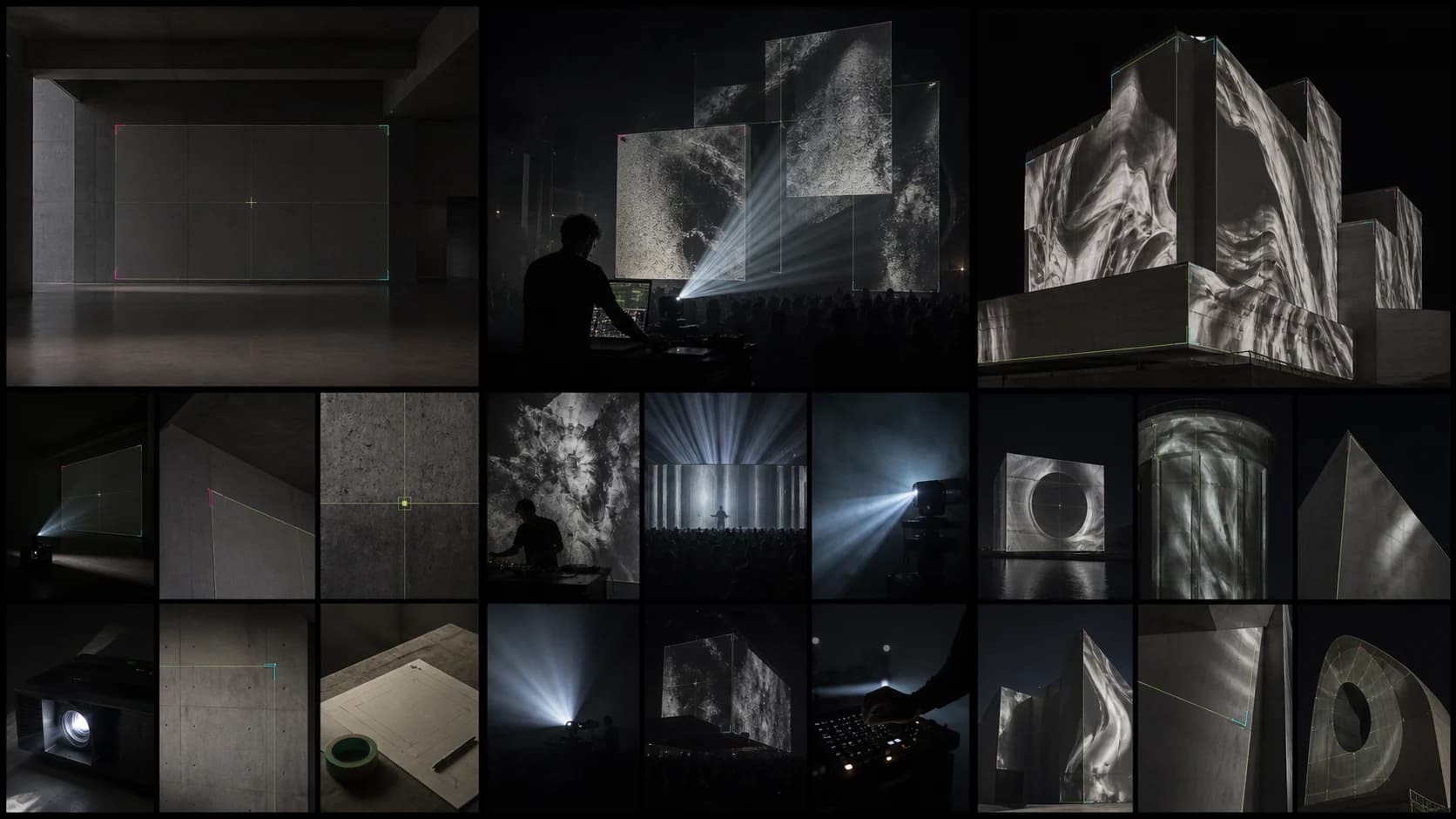
Projection studies in a concrete calibration room, a live performance space, and across architectural forms
Generated environment study / product proof appears separately
Primary workflow / Live set

From empty stage to a cueable show.

The whole loop stays visible: geometry, sources, scene state, controls, and output. Nothing needs an export round-trip before the picture reaches the wall.

Start with the test surface →
  1. Prepare01

    Build the mapped stage

    Add surfaces for the screens, scenic flats, or props in front of the projector. Warp each one directly against the real geometry.

  2. Feed02

    Assign the visual sources

    Mix clips, images, captured screens, cameras, test patterns, or live GLSL. Tune masks, blend modes, and colour per surface.

  3. Rehearse03

    Capture the Looks

    Save the states you need, choose crossfade timing, map MIDI controls, and check the clean output before the room opens.

  4. Perform04

    Go Live

    Keep the editor on the laptop while a separate window mirrors the stage to the projector on the same machine.

Six useful modes

Different rooms. The same surface-to-output loop.

VJ01 / 06

Stage and VJ sets

Map clips and shaders across a compact stage, then perform with Looks, crossfades, MIDI, beat timing, and microphone-reactive uniforms.

  • Surfaces + masks
  • Looks + MIDI
  • Go Live output
Boundary

Best for a single-machine rig. It is not a replacement for a networked media server.

OBJ02 / 06

Architecture and objects

Fit a projection to a wall, façade detail, prop, sculpture, or irregular flat shape with quads, ellipses, polygons, and mesh controls.

  • Perspective warp
  • Polygon surfaces
  • Test-pattern alignment
Boundary

Alignment is hands-on. Projektor does not provide a full 3D calibration or multi-projector blending workflow.

INS03 / 06

Installations and pop-ups

Prototype a small exhibit or temporary activation without preparing a native-app install. Save the project locally and reopen it on the show machine.

  • Portable project files
  • Local autosave
  • Iframe embed
Boundary

Use a supervised browser session; unattended, redundant installation playback is outside the current scope.

GLSL04 / 06

Live shader performances

Write and compile GLSL against the running composition, keep the last good program when a compile fails, and drive uniforms from live audio.

  • Shader editor
  • Built-in gallery
  • Audio-reactive input
Boundary

This is a focused shader surface, not a general-purpose node or 3D environment.

LAB05 / 06

Workshops and classrooms

Teach corner-pin geometry, compositing, or shader basics from a URL. Learners can open the same instrument without provisioning desktop licenses.

  • No account
  • No installer
  • Forkable project links
Boundary

Shared links carry scene data and URL-backed media; local files and camera streams stay on each device.

MCP06 / 06

Agent-controlled shows

In a local developer setup, connect the included MCP server so an AI agent can inspect the stage, edit surfaces, assign media, and prepare Looks.

  • State summaries
  • Editor screenshots
  • Confirmed live actions
Boundary

The agent handle is opt-in and disabled in the public production bundle. Live or destructive actions remain gated.

Pick the right rig

Know when the browser is enough.

Projektor fits when

  • One computer drives the editor and projector output.
  • You want direct surface manipulation rather than a node graph.
  • Your sources fit within browser media and capture APIs.
  • A shareable, inspectable, MIT-licensed setup matters.

Bring a larger tool for

  • Networked output nodes across multiple machines
  • Native NDI, Syphon, or Spout routing
  • DMX fixtures and large media-server clip libraries
  • Road-tested redundant playback for a permanent venue
Test the workflow

Start on a screen. Point it at a wall when you are ready.